

Release
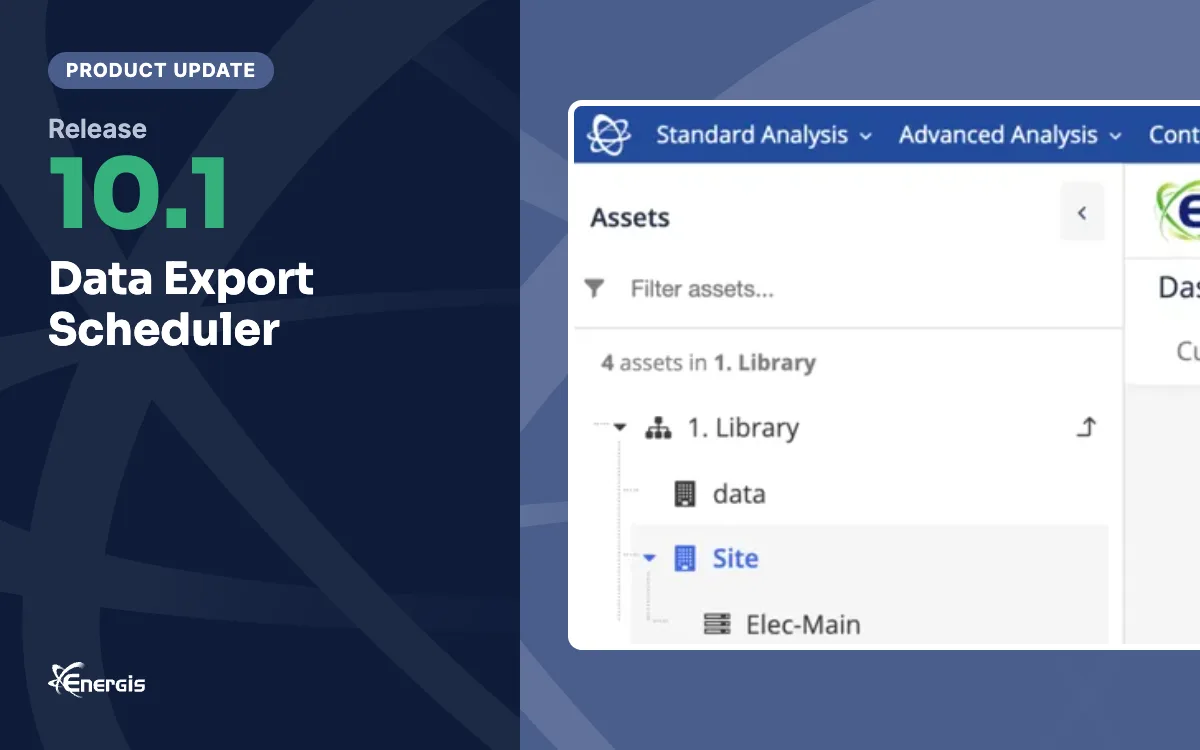
Energis.Cloud Release 10.1: Data Export Scheduler

- Data Export Scheduler (beta), under the Setup section
- Export data on demand or on a periodical schedule
- Select multiple assets by tags, name, asset class and asset category, and multiple metrics
- Email notification to chosen Energis.Cloud users when the export is ready
The Data Export Scheduler
Release 10.1 brings a long-awaited feature that improves your data export capabilities: the Data Export Scheduler. It is designed to save time and simplify data management.
With the Data Export Scheduler, exporting large volumes of data becomes much easier.
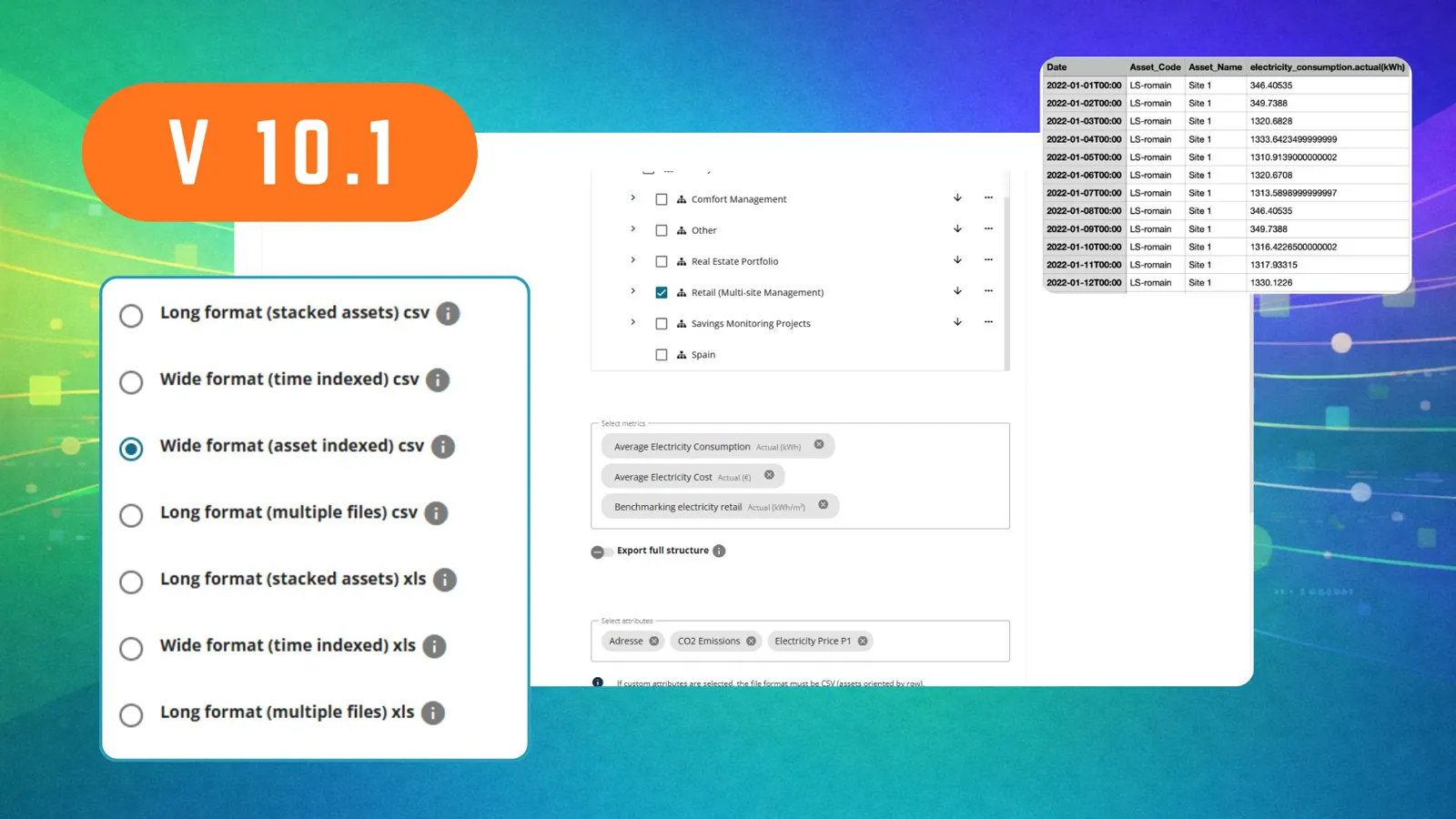 The data export setup in release 10.1: the CSV and XLS formats on the left, the asset tree, the selected metrics and attributes in the middle, and an extract of the exported file.
Why a new export tool
Energis.Cloud already offered data export functions, such as downloading data as PDF reports or exporting data related to selected assets through analysis views. However, neither option is designed to export larger amounts of data for a greater number of assets.
We developed the Data Export Scheduler to meet this need. It simplifies the data export process and lets you manage and export large data sets.
What the Data Export Scheduler does
With the Data Export Scheduler, you can:
- export data either on demand or on a periodical schedule;
- select multiple assets based on tags, name, asset class and asset category;
- select multiple metrics;
- select multiple Energis.Cloud users who will receive a notification email once their export is ready.
Setting up a Data Export schedule
You will find the Data Export Scheduler under the Setup section.
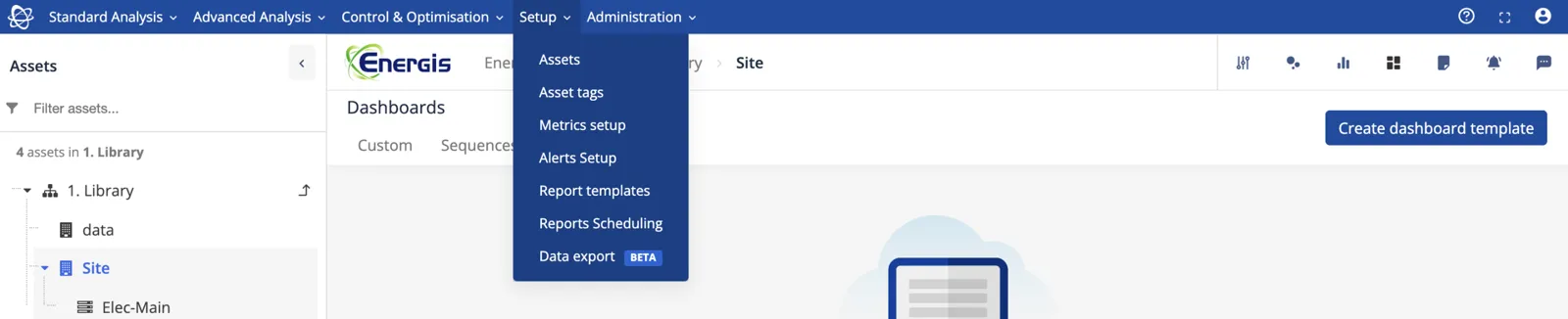 The Setup menu in release 10.1, with the new Data export entry, then in beta.
Click the Create New button to start configuring a new schedule. A 3-step wizard guides you through the process.
Step 1. Data Setup
Select the assets for which you want to export data, using the asset selector panel.
You can first filter based on tags, name, asset class and asset category. You can then select the assets one by one with the box on the left side of each asset. Alternatively, you can hover over the right side of an asset and click Select all. This selects the asset together with its children.
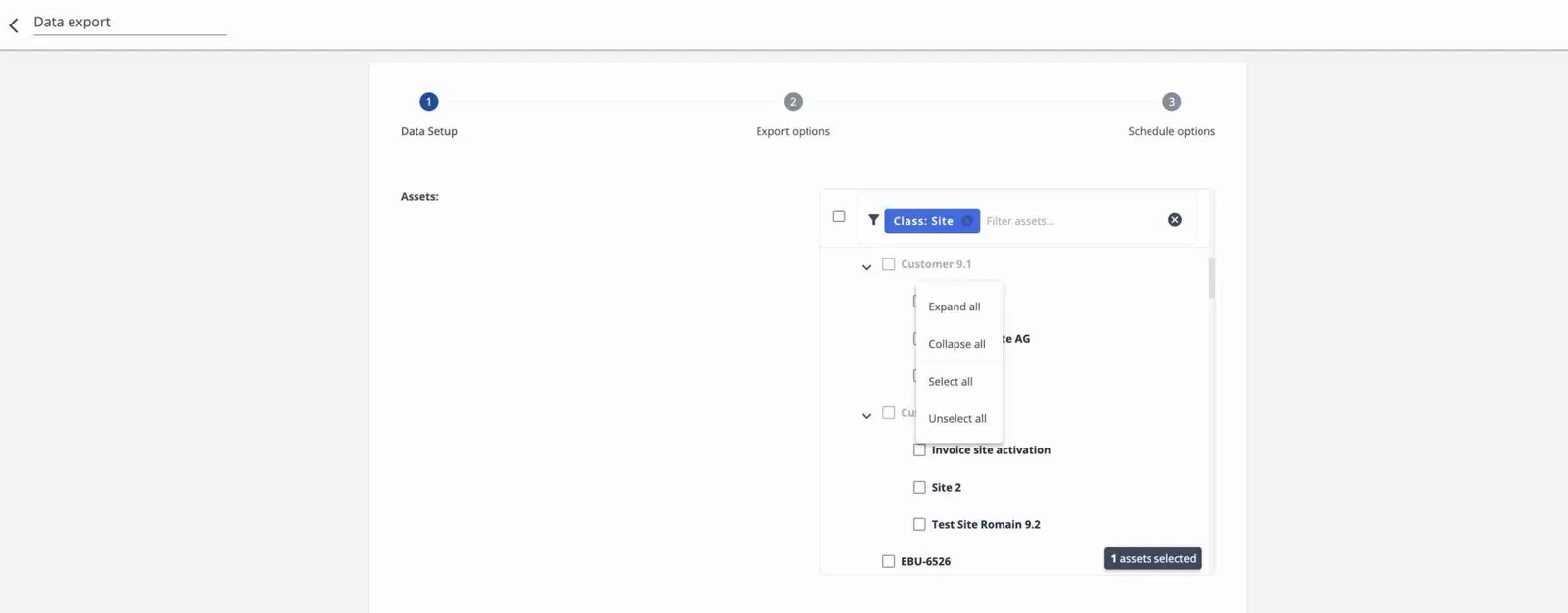 Step 1 of the wizard, Data Setup: the asset selector filtered by class, with the menu to expand, collapse, select or unselect a branch.
Next, select the metric(s), period and granularity.
Step 2. Export Options
Choose the file format of the export and the Energis.Cloud users who should receive a notification email for the export.
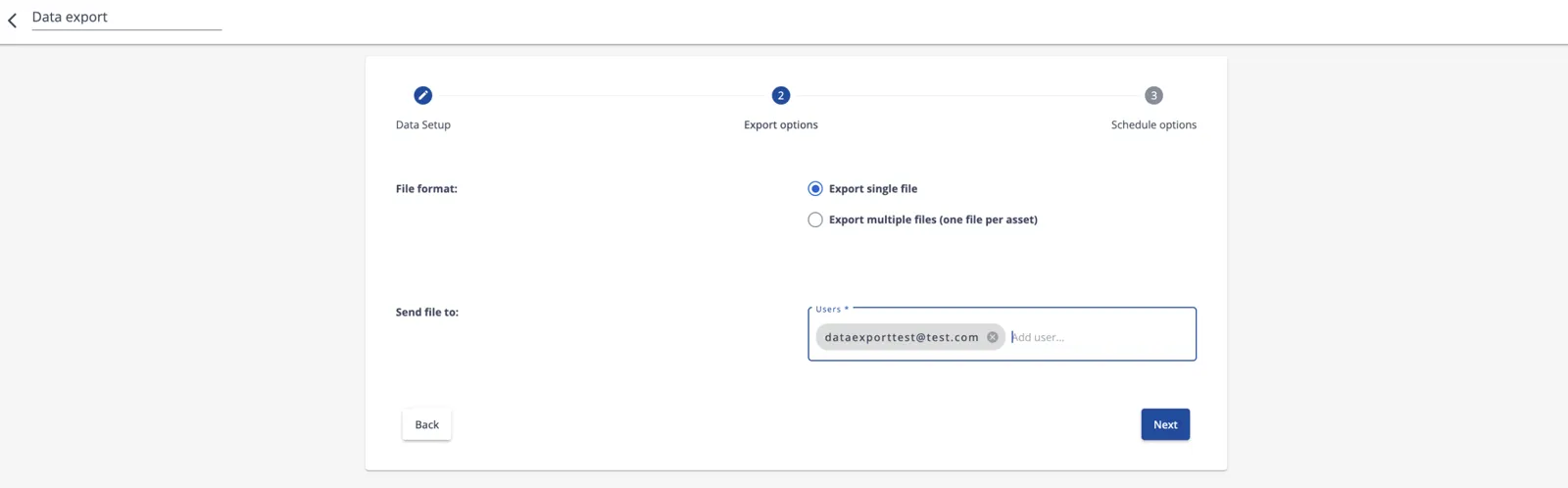 Step 2 of the wizard, Export options: a single file or one file per asset, and the users who receive the notification email.
Important to know:
- In the current beta version, only the Export single file option is supported. We will support the Export multiple files (one file per asset) option in another release.
- You can include only Energis.Cloud users as receivers of the data export.
Step 3. Schedule
In the last step of the wizard, you define the behaviour of your schedule. You can select a certain period or the On Demand option, and save.
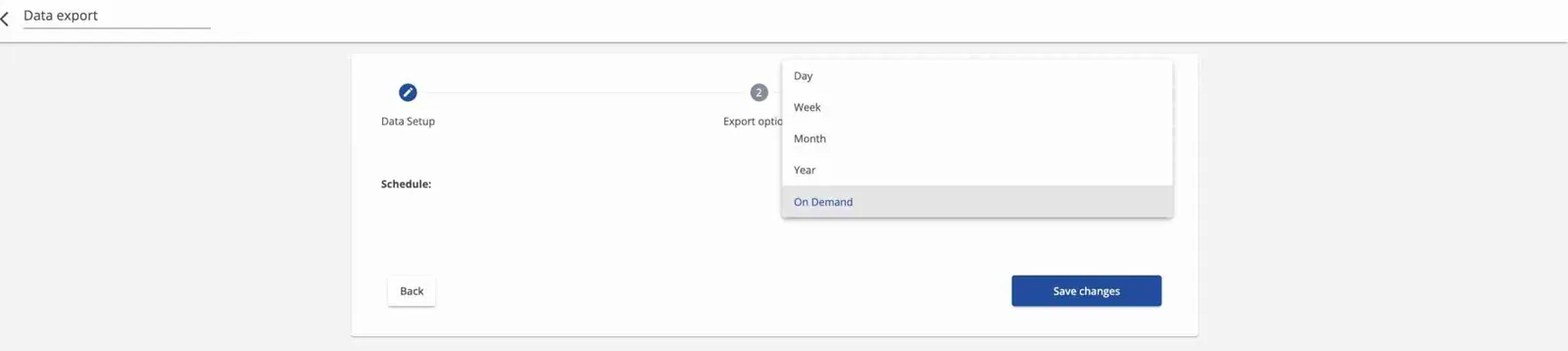 Step 3 of the wizard, the schedule: day, week, month, year or on demand.
After the schedule is set up
You will find your schedules in a table with the information related to their setup.
 The list of data export schedules, with the navigability area, the number of assets and metrics, the period, the schedule and the status of each.
The Navigability area column shows the asset on which you created the schedule. The table shows all the schedules created on that asset, together with those of its children.
If you are a user who has access to all assets, you can go to the company asset to see every schedule created in your environment.
Clicking a schedule shows more information about it. If you selected the On Demand option, you can click the Generate now button to retrieve your export. When the export is ready, an email is sent to the addresses you specified during setup.
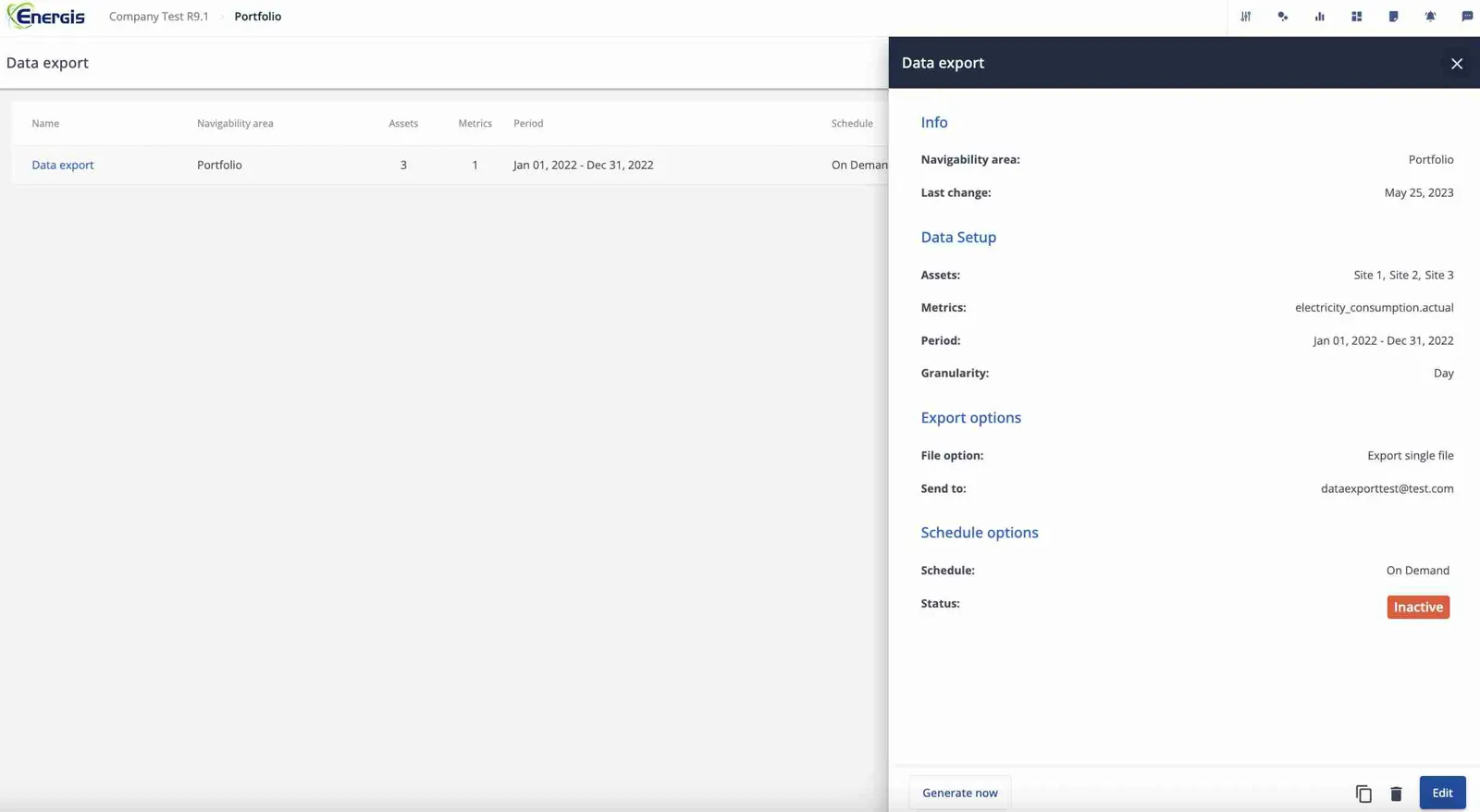 The detail panel of a schedule: what it exports, to whom, on which schedule, and the Generate now button for an on-demand export.
The exported file is then available in the Documents section of the asset where the schedule was created (the one that matches the Navigability area).
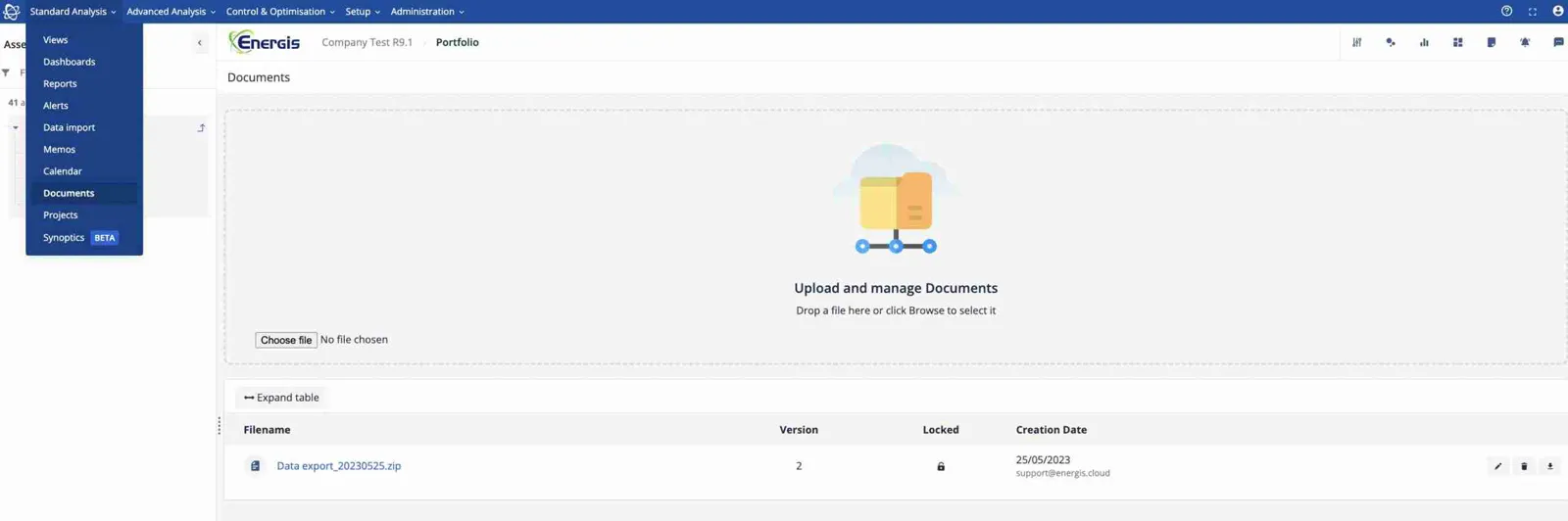 The Documents section of the asset, where the exported file appears as a zip with its version and creation date.
In the file, each row is a timestamp based on your granularity selection. The 2nd and 3rd columns contain the asset code and name, followed by the metric data values.
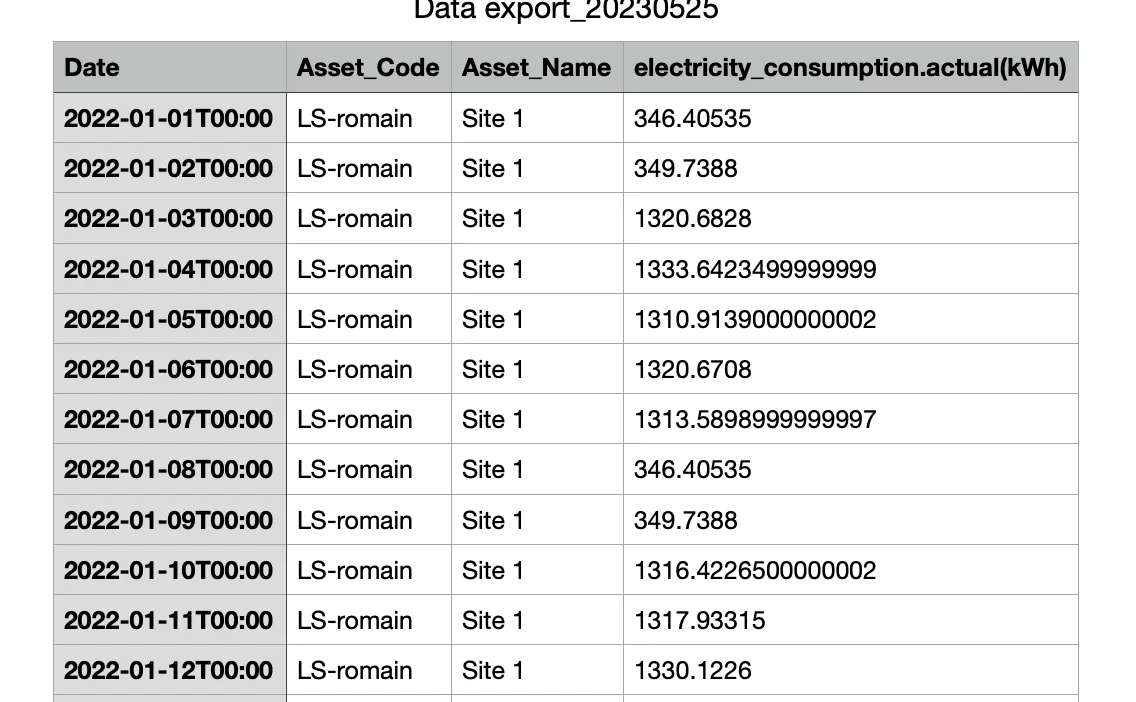 An extract of the exported file: one row per day, with the asset code and name followed by the electricity consumption.
Notes on the beta version
Exporting large amounts of data is a sensitive operation. We are therefore working on certain limitations that will ensure good performance of the system while meeting all your export needs. During this beta phase, we would be very happy to hear about your experience with this feature: contact Energis Support.
Please note that only the Export single file format option is operational.
You can have a maximum of 20 schedule setups in total for your environment.
New articles and product updates by email
Guides, customer stories and what is new in Energis.Cloud. You can unsubscribe at any time.
We use your email address only to send these updates. See our privacy policy.